
 Home
 User Guide
 Developers
 Payment Gateways
 Integrations & Tools
 Site Usage
 Troubleshooting
Create category
Products on screen Add Category Press the button. Type the category name; add and save the description and visual. If you create a subcategory Main Category Select the category that will depend on the area. So you can edit the products in the same group under smaller headers.View category areas
View category areas
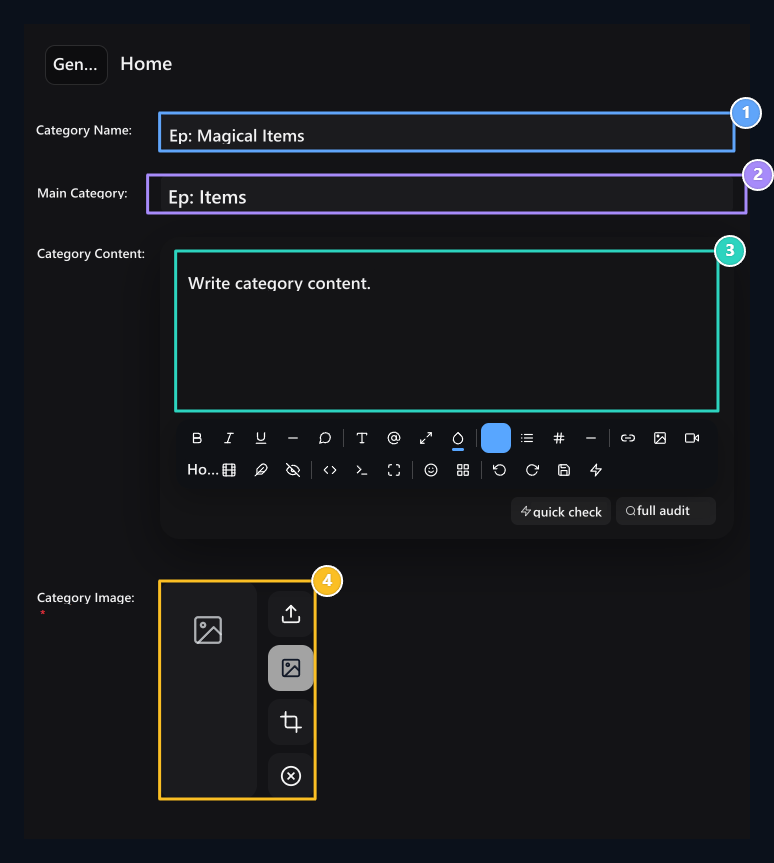
1. Category name
Write a name that customers will understand easily.
2. Main category
Select the group that will depend on the subcategory.
3. Category description
Explain what products are included in this group.
4. Category visual
Upload a cover or select from the library.
Add your first product
Add product Print the button and select the category and product type. Prepare the product name, description and visual; then complete the price, stock and delivery information.
Prepare product information
Product name, visual, description and assigned roles.

Set the price and stock status
Sales price, discount, stock and time options.
Category and product operations
Narrow or expand the category by pressing the arrow next to the category. On the line to change a record three points → Edit Use the way. To prepare a similar record Copyto remove Delete You can use the option. Drag the line’s carrying handle to change the order of the products. Check the boxes of corresponding lines if you will process multiple records.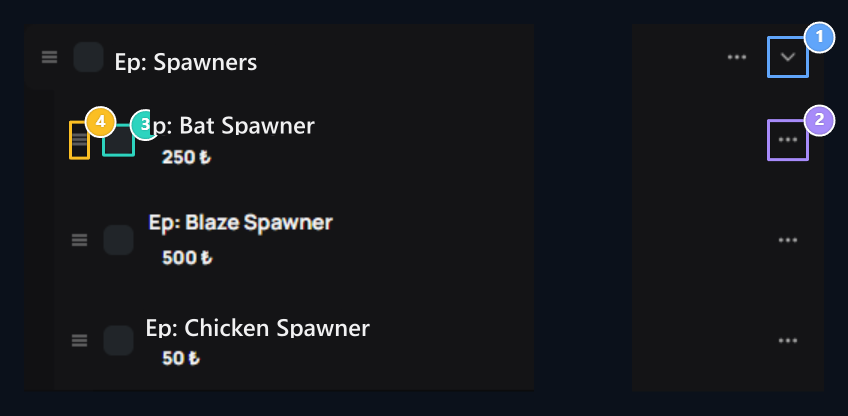
1. Reduce or expand the category
Delete or expand the list of products belonging to the category.
2. Product menu
Use Edit, Copy or Delete option.
3. Line selection
Check the records you will do with.
4. Product order
Sort by dragging from the slide.
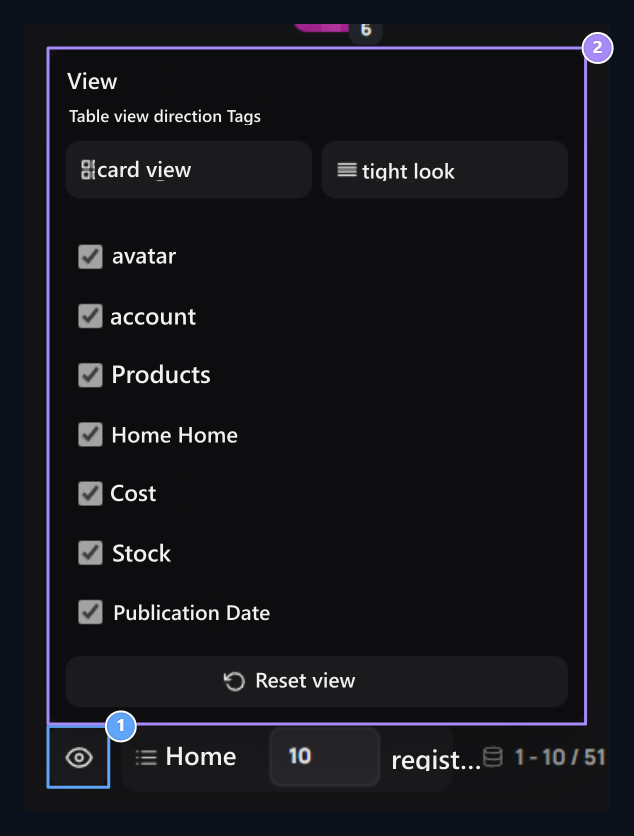
Select list view
- Categories and products together
- Separate tables and column settings
Default The products in the appearance are listed in the same list. You can use this view while editing category structure.

1. Default
See categories and products in the same list.
2. Normal
Open products and categories in separate tables.
3. Add products
Add new products to your chosen category.
Product add-ons
Continue your product from the guide to the type and options you will offer.
Delivery commands and in-game menu
Select the server, prepare delivery commands and menu view.

Variations, questions and additional services
Set the information that will be asked when buying products and products.

Digital product
Add download link, promotional content and sales settings.

Single skin and skin membership
Prepare skin loading and membership products.

Multiple product and comparison table
Prepare product cards together; Offer memberships side by side on your theme.

Adding SMM product
Select a service from the provider and open it on sale in your store.