
 Home
 User Guide
 Developers
 Payment Gateways
 Integrations & Tools
 Site Usage
 Troubleshooting
Enter application and company information
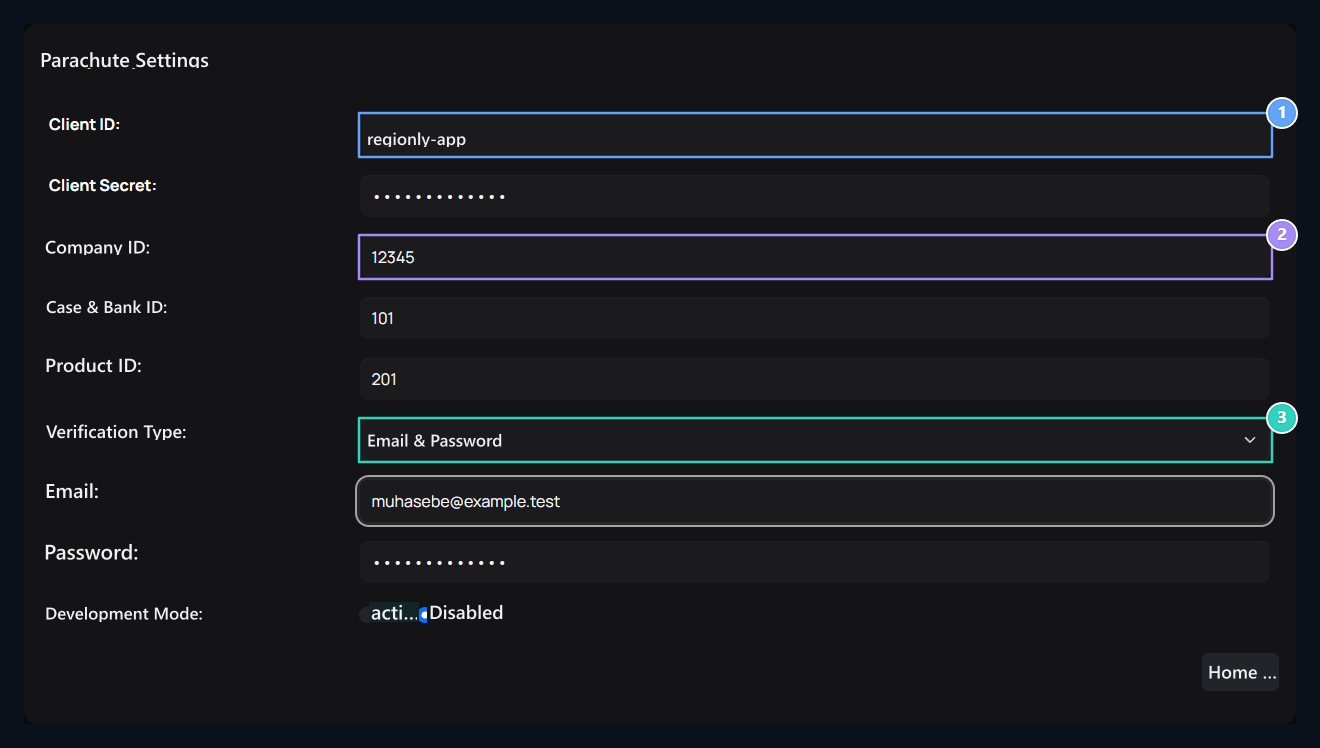
1. Client ID
Client ID of the application to be used in the connection.
2. Company ID
The identity of the company owned by the operations.
3. Verification Type
Email and Password or OAuth selection.
Do not write names that appear to the names of the registrations in the fields of ID. Compare the app and company records are the right account.
Where is the company ID?
Parachute panel Settings → Company Information open the way. Customer No number in Zonely Company ID type in the field. This value in the shared example 85504.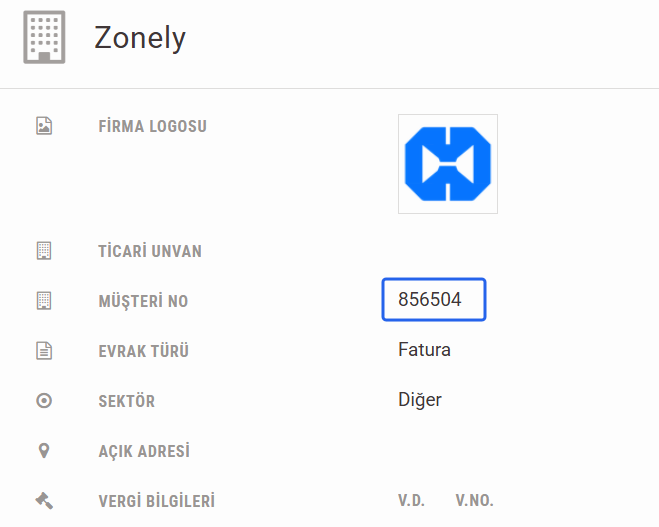
uygulama.parasut.com/85504/… The first number at the address is the company ID.
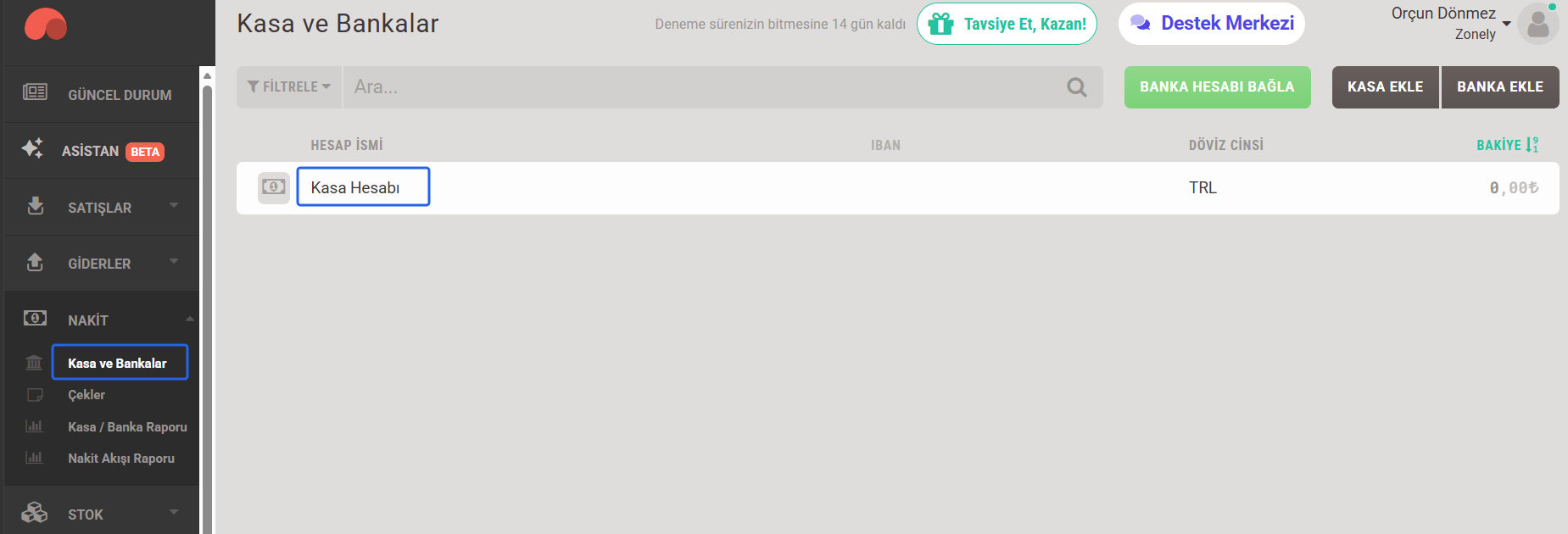
Where to find a Case & Bank ID?
- From the Parachute menu Cash → Case and Banks open the part.
- Click on the case or bank account you will use in the integration. Sample Case Account registration is used.
- From the pop-up last number Zonely Safe & Bank ID type in the field.

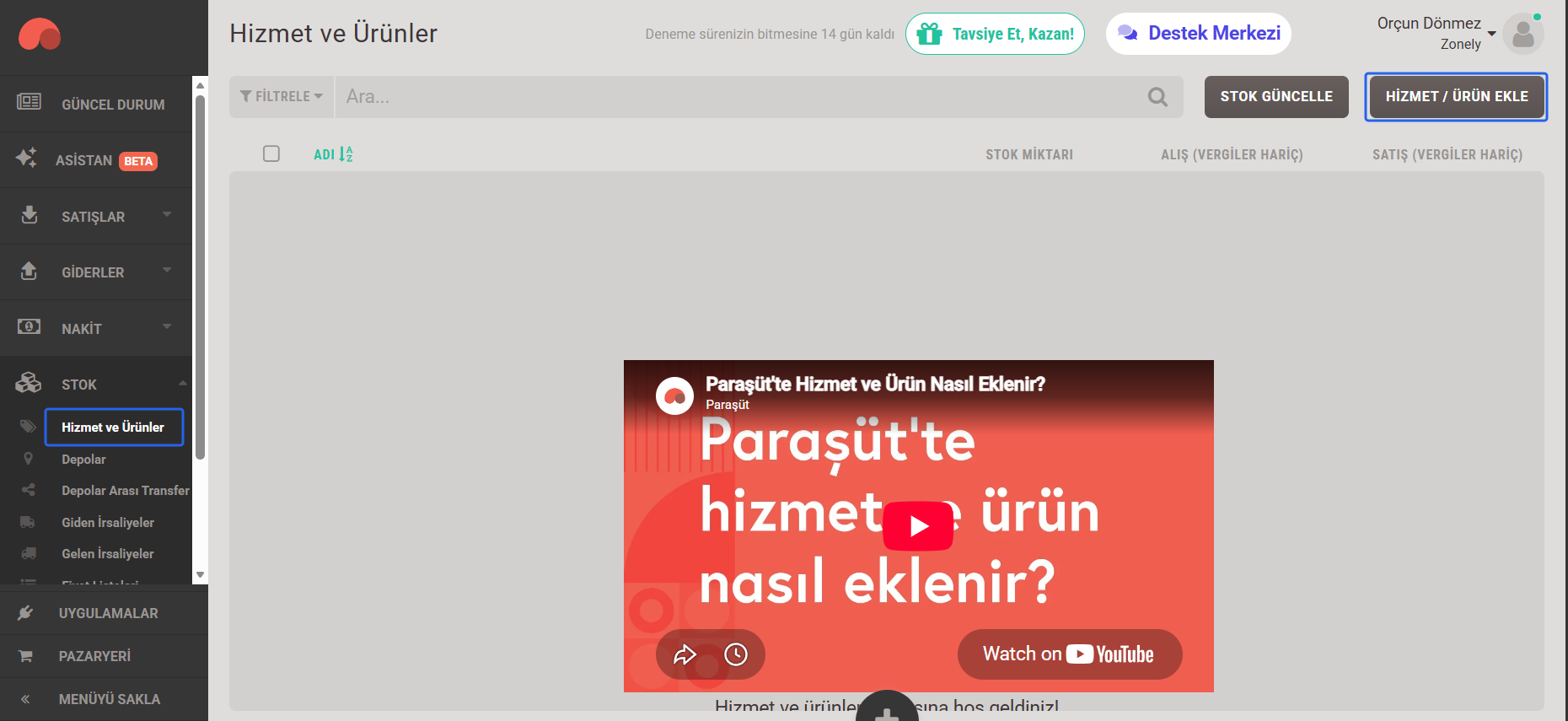
Where to find the product ID?
- Paraşüt Stock → Service & Products open the part.
- If you do not have any registration you will use Service / Add Products Press the button. Product name in sample credit, Unit Quantity and stock tracking Do not prepared. Enter the appropriate information on your own sales Save Press the button.
- Open the detail of the recorded product. Address the number at the end Zonely Product ID type in the field.
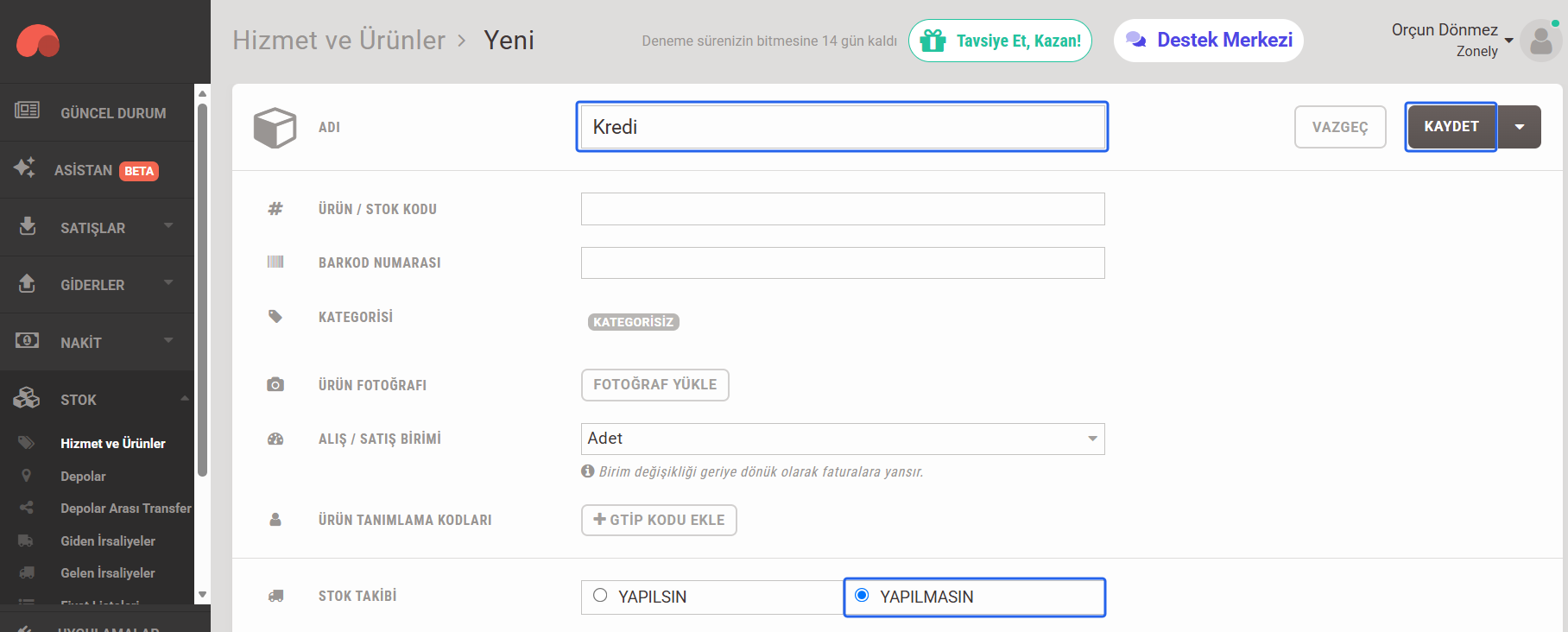

Select the type of verification
Verification Type → Email & Password if selected Email and Password fill in the fields. This information is kept separately from the Top Client ID and Client Secret areas.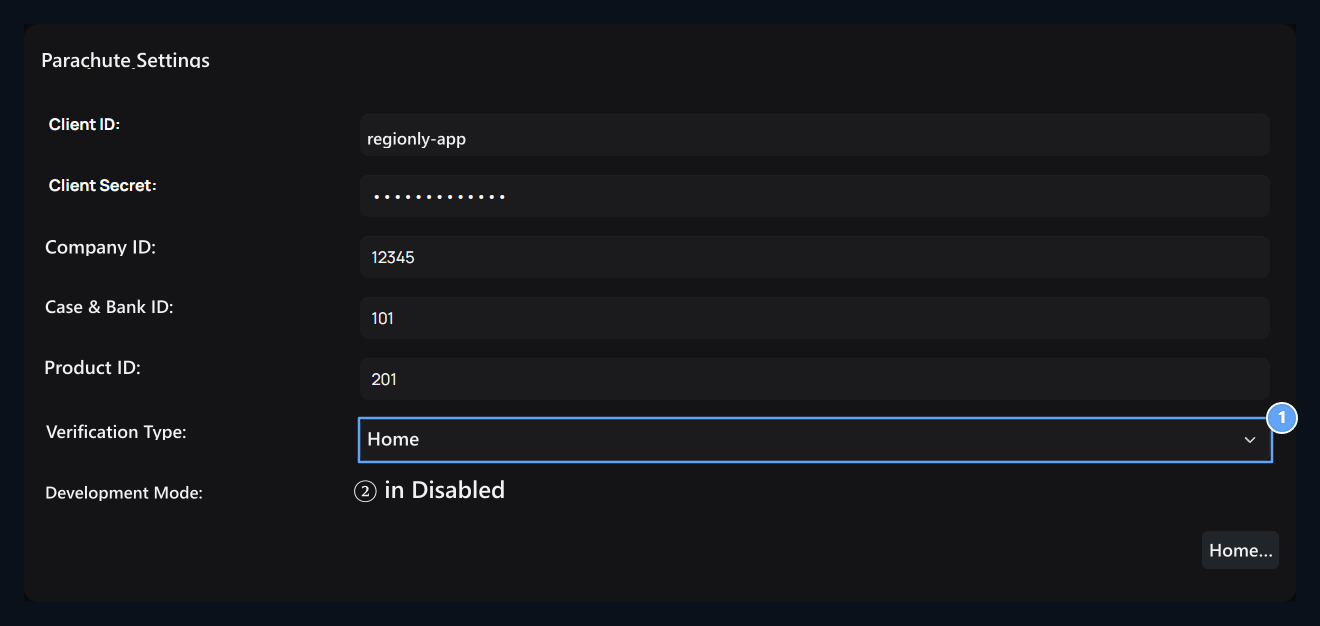
1. OAuth
Hide email and Password lines in this selection.
2. Development Mode
Effective or Non-transfer choice.