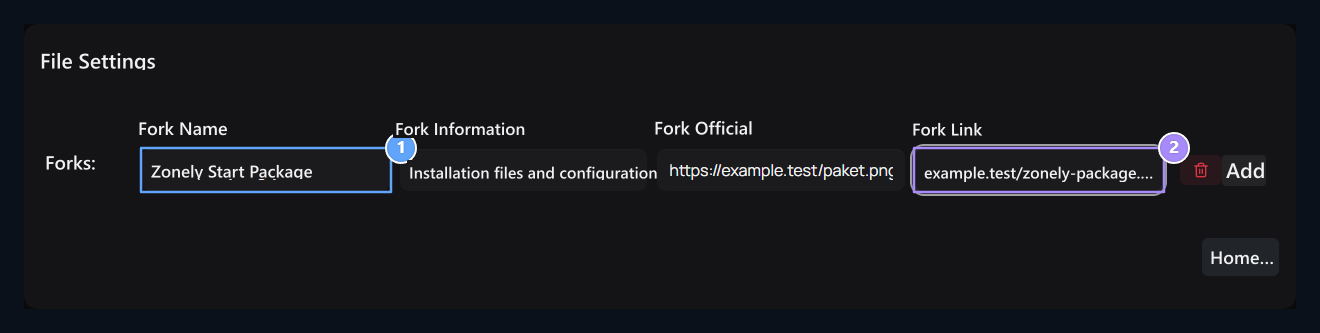
Add-ons → Uploaded On the tab Downloads Find the record. Options → Layout open the way. Forks Prepare each downloadable content on the table as a separate line.

Fill out the file information

Fork Name, Fork Connection

1. Fork Name

File or version name that the user will see.

2. Fork Connection

Full address where the download process will go.
Keep visual and download addresses on their columns. Add opens new lines; the lifting button removes the corresponding content from the list.

Check and check

After completing lines Save Press the button. Check the name, description and visual from the download list on the user side. Download make sure the connection is targeting the correct file. This screen defines a available download address; does not upload the file to the server. To add new version file to purchased digital product Updates Go to the guide.