Addons On screen Inventory Viewer Activate the record. The game inventory and status information provided to everyone in the open profile is displayed.

Prepare ZonelyCore connection

This feature Compatible with ZonelyCore. Dry the plugin to the Minecraft server you want to show inventory and prepare site connection and inventory feature. Check the user matches the game account with the site account. ZonelyCore installation guide → If there are multiple connected servers in the user profile Server You can choose the server you want from the list. Inventory and status information are shown according to the server you choose.

Select the server

Server selection, Inventory

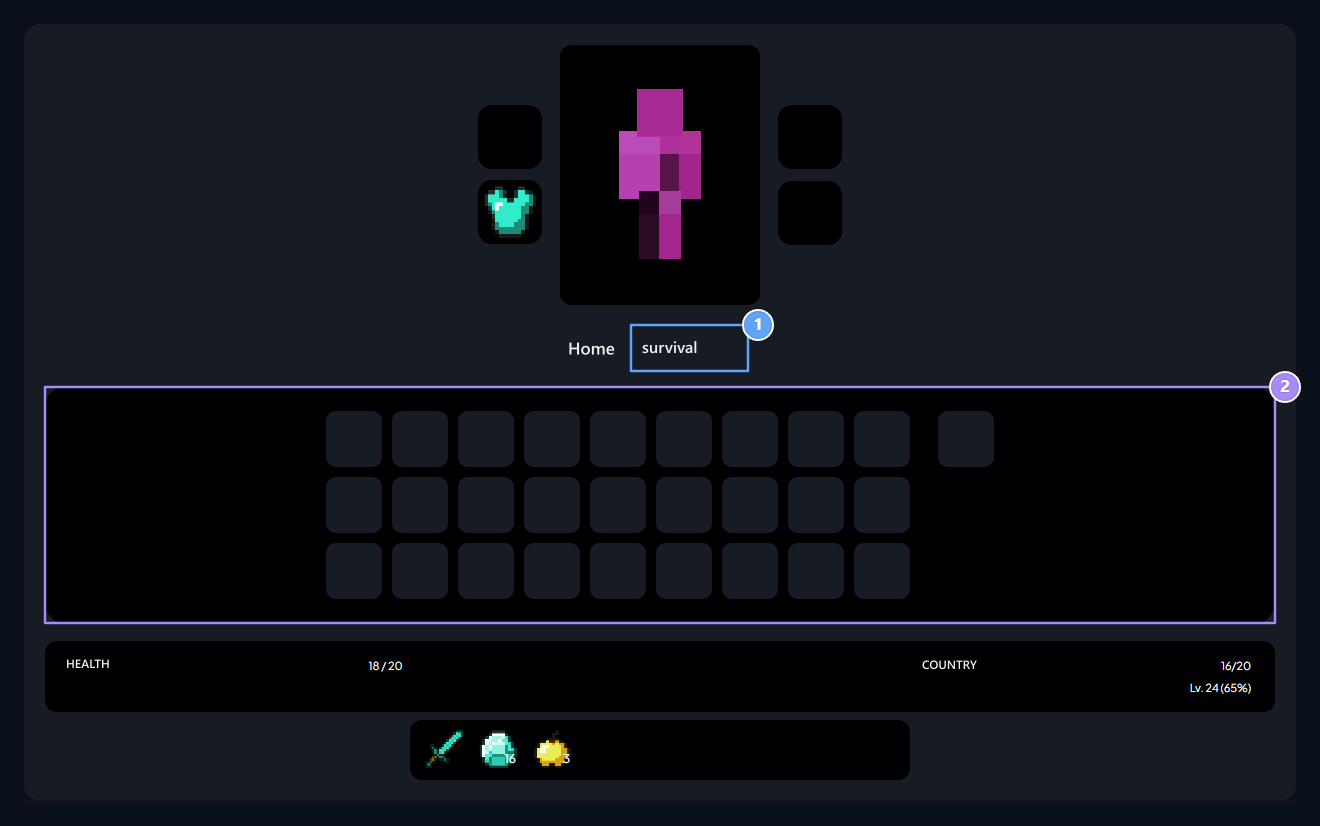
1. Server selection

Select which server you view inventory.

2. Inventory

Items and game status are shown in this area.
Open the profile of the relevant user. Server Select the source you will review from the list. The main slots in the inventory are available in the products and armor areas. Read the details provided by placing the item on the top; the quantity of the quantity indicates the quantity in the slot. Profile Health, hungerThe experience level and progress belongs to the record of the selected server. Assess this information with new resources to change server selection.

Check the data source

The connection that provides inventory data of the server must be ready. There are different situations where inventory data cannot be received with empty slots; read the description shown when the registration is not found. Displays this display inventory. There is no process to carry goods or send them to another account. For connection preparation Servers See guide.